Apps for Hearing Loss: Which Kind You Actually Need
Short answer
Apps for hearing loss fall into three groups that solve different problems. Captioning apps turn speech into text on your screen, like iScribe. Amplifier apps make sound louder through your headphones, like Clarive. Companion apps adjust hearing aids you already own, like myPhonak. Picking from the wrong group is why people try three apps and conclude none of them work.
Key takeaways
- There are three categories, not one ranked list. Captioning, amplification, and hearing aid companion apps solve different problems and don't compete with each other.
- If you can afford hearing aids, get hearing aids. Apps are the third-best answer, and anyone telling you otherwise is selling something.
- Amplifier apps work by getting a microphone closer to whoever is talking. That's the whole mechanism, and it's why they fail across a large room.
- Captioning apps ask you to read instead of listen. That's a real trade in a fast conversation, and worth testing before you rely on it.
- Free almost always means a daily cap or a paywalled feature. Check what the limit is before you build a habit around an app.
Search for apps for hearing loss and you’ll get a dozen ranked lists. Nearly all of them make the same mistake: they put a captioning app, a sound amplifier, and a hearing aid remote control in one list and number them one through ten, as if you’re meant to pick a winner.
Those three things don’t compete. They solve different problems. Picking from the wrong one is how someone ends up downloading three apps, finding none of them helps, and deciding the whole idea doesn’t work.
One thing the ranked lists never say: these are three jobs, not three walled gardens. A few apps do two of them. That’s worth knowing before you buy, because it changes what you’re comparing.
Three kinds of app, and which one you actually need
Here’s the split. Find yourself in it before you install anything.
Captioning apps turn speech into text on your screen. You read instead of listen. These help when you can tell someone is talking but can’t separate the words. That pattern has a cause: age-related hearing loss usually takes the high frequencies first, and high frequencies are where the consonants live. Vowels carry the volume, consonants carry the meaning. On an iPhone, iScribe is the one built for this job: live captions in 100+ languages, a saved transcript instead of text that scrolls away, and a summary of the key points when you’re done. Download a language and it keeps working with no signal. Clarive captions too, in 40+ languages, and amplifies at the same time. Live Captions is free and already on your iPhone. Ava and Otter are the other two worth knowing.
Amplifier apps use your phone’s microphone to pick up sound, make it louder, and play it into your headphones. These help when speech is clear enough but too quiet, or when the person you want to hear is across a table in a room with other noise. Clarive is the one to start with if you own ordinary headphones, because it works with any pair that connects to your iPhone. Live Listen is free and built in, but only with AirPods, Beats, or a certified hearing device. Hear Boost is the other third-party option.
Companion apps are made by hearing aid manufacturers to control hearing aids you already own. Oticon Companion, Philips HearLink 2, myPhonak, ReSound Smart. If you don’t wear that brand’s hearing aids, the app does nothing for you. This is also half of what people mean when they search for a hearing aid app, and the other half is the amplifier category above. We’ve split that phrase properly in hearing aid app for iPhone: which of the two you mean.
The test is what fails first. Can you hear that someone is speaking but not make out the words? That’s a clarity problem, and captions attack it directly.
Is everything just too faint? That’s volume, and an amplifier is the right category.
And if you already wear hearing aids that need adjusting for a specific room, that’s the companion app. It’s the easiest of the three to overlook and the most powerful of the three to use.
For the wider picture of where phones sit among all the hardware options, we’ve written about assistive listening devices separately, and the comparisons hub collects everything in this cluster.
Before you install anything, the honest order
I make an app in this category, and I still think it’s the third-best answer.
If you can afford hearing aids, get hearing aids. They’re fitted to the specific shape of your hearing loss, they run all day, and nothing on your phone matches that. Every app on every list, including mine, is working around not having them.
If hearing aids are out of reach, look at cheaper hardware next. Over-the-counter devices have come down a lot in price since the FDA opened that category, and a dedicated device you wear beats a phone in your pocket.
Apps come third. They’re worth trying because they cost almost nothing and you can test them tonight, which is a genuine advantage when you’re not yet sure whether amplification even helps you. That’s the honest case for them: cheap diagnosis of what kind of help you need, not a substitute for the help itself.
And if any of this is new, or if the change came on suddenly, see an audiologist before you spend time on apps. Sudden hearing loss is treated as a medical emergency by the NIDCD, and the window for treatment is measured in days.
Captioning apps: what they do well and where they fall over
Captions are the strongest option in the category, and it isn’t close. Speech recognition got good enough that reading a live transcript of a meeting is genuinely workable.
What separates a good one from a generic transcription app is whether it knows what you’re listening to. iScribe makes that a setting: Hearing Aid captures through Bluetooth hearing aids or earbuds, TV & Media is for anything coming through a speaker across a room, and Auto handles everyday conversation and splits a group around a table into separate speakers, so you can see who said what instead of one undivided block of text. A dictation app pointed at a dinner table gives you the words with no idea who spoke them.
The other thing worth having is what happens after. Captions scroll away while you’re still reading them, and if the reason you needed them was a doctor’s appointment, the sentence you missed is the one that mattered. iScribe keeps the transcript, makes it searchable, and pulls out the key points, in your own language if the room wasn’t speaking it.
Where they fall over is conversation. Reading has a lag, and by the time you’ve read the sentence, the room has moved on. That’s fine in a lecture where you’re receiving rather than replying. In a four-person dinner it means you’re always slightly behind, and the moment to say something has passed by the time you know what was said.
The other limit is noise. Recognition degrades when several people talk at once, which is exactly the restaurant scenario that sends people looking in the first place. Test one in the room you actually struggle in, not in your kitchen.
One thing worth checking before you commit: whether the app runs recognition on your phone or sends audio to a server. On-device is faster, works without a connection, and doesn’t put your conversations on someone else’s computer. Server-based tends to be more accurate on hard audio. Both are legitimate. Just know which one you’ve installed.
Before you pay for any of them, check what the phone already does. We went through what Live Transcribe on iPhone actually means separately, including which built-in captioning is free and where it stops.
Amplifier apps: getting the microphone closer
An amplifier app does something simpler than it sounds like. Your phone’s microphone picks up the room, the app raises the volume and shapes the sound a bit, and it plays the result into your headphones with as little delay as possible.
The reason it helps is distance, not volume. Put the phone on the table between you and whoever you’re talking to, and the microphone is two feet from their mouth instead of six feet away like your ears are. That change in distance does more than the volume slider does.
What varies between apps is what they do to the sound after picking it up. Raw volume makes a noisy room louder, not clearer, which is why the useful controls are the ones that change the shape of it. Clarive ships five presets for this, and the names tell you the situation each is for: Clear, Conversation, Noisy Place, TV & Media, and Speech Clarity. On top of that, Voice Isolation pulls out the person in front of you and Focus Mode narrows to what’s ahead, so a cafe with a tile floor and a lecture hall aren’t handled with the same settings.
The reason it fails is also distance. Across a lecture hall, your phone’s microphone hears the room, not the speaker, and no amount of amplification fixes that. Personal amplifiers are a close-range tool. That’s a property of the category, not a flaw in any particular app, and no preset gets around it.
Apple’s Live Listen is already on your iPhone and does this for free. It’s worth trying first for exactly that reason. The catch is that Apple restricts it to AirPods, Beats, and certified hearing devices, so if you own ordinary Bluetooth headphones it won’t work for you. We wrote about that restriction and the ways around it in more detail.
Companion apps for hearing aids you already own
If you wear hearing aids and haven’t installed the manufacturer’s app, do that before reading further. It’s free, and it does more than anything else on this page.
These apps let you change programs, shift the balance between speech and background noise, and often steer the microphones toward whoever’s in front of you. That’s your fitted hardware being retuned for the room you’re standing in, which is a different order of help from anything a phone microphone can do.
They also tend to be poorly reviewed and confusing, which is why people skip them. Worth pushing through.
Apple’s own Hearing Aid feature on AirPods Pro sits in an odd spot between categories: it’s Apple hardware running a software hearing aid, tuned by a test you take on the earbuds themselves.
What “free” means in this category
Almost every list you’ll read calls these apps free. Nearly none of them checks what happens on day three.
Free usually means one of three things. A daily cap, so you get a set number of sessions and then wait until tomorrow. A session limit, so it stops after some minutes. Or a feature gate, where the app runs but saving, or extra languages, or the sound controls sit behind a subscription.
None of that is dishonest, and running speech recognition costs real money. But it changes whether an app is something you can rely on in a meeting, and no roundup I’ve read tells you which limit you’re signing up for. Install, then find the limit before you need it.
Clarive works this way too. The free tier gives you five uses a day, and beyond that it’s a paid plan. I’d rather say that here than have you find out at the wrong moment.
Where Clarive fits, and where it doesn’t
Clarive is one of the apps that does two of the three jobs. It amplifies, and it captions. If you’re weighing it against something that only does one, that’s the comparison to make, not a feature count.
The one thing it does that Apple’s Live Listen doesn’t is work with any headphones that connect to your iPhone. Wired EarPods, cheap Bluetooth earbuds, over-ear headphones you already own. No AirPods, no certified hearing device, nothing extra to buy. That’s the entire reason it exists.
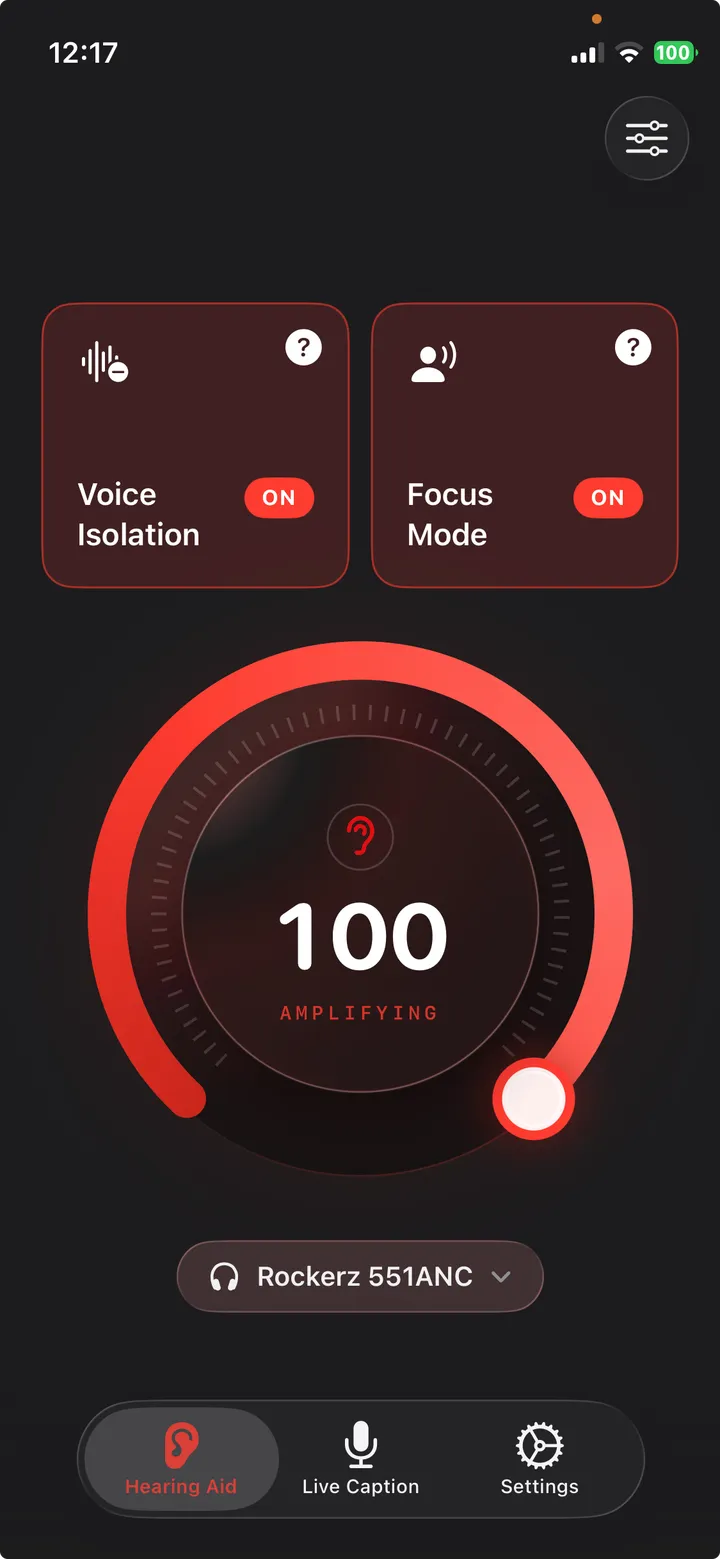
It also does captions in 40+ languages using Apple’s on-device speech recognition, with automatic language detection, and it can save a transcript to read later. Everything runs on the phone. No audio leaves it, and there’s no account to create.
Where it loses:
- No hearing test. It doesn’t measure your hearing or tune itself to you. Apple’s Hearing Aid feature on AirPods Pro does, and if you own those earbuds, that personalization is worth more than anything Clarive offers.
- iPhone only, iOS 26 or later. No Android, no iPad.
- Five uses a day free, then a paid plan ranging from $4.99 to $29.99 depending on billing period.
- No phone calls. It works on the microphone hearing the room, not on the call audio path.
- It won’t help a moderate or severe loss much. If conversation is hard across most of your day, this is not the answer and I’d rather you spent the money on an appointment.
If you already wear hearing aids that work, you probably don’t need this. If you own AirPods Pro, try Apple’s Hearing Aid feature first. It’s free and it’s tuned to you.
Try Clarive on the App Store if amplification is the job you need doing, or if you want captions and amplification from one app.
Common questions
Is there an app that turns my phone into a hearing aid?
Several apps amplify sound through your headphones, and in everyday language people call these hearing aid apps. None of them is an actual hearing aid. A hearing aid is fitted to your specific hearing by a clinician and regulated as medical hardware. An amplifier app raises the volume of what your phone's microphone picks up and sends it to your headphones. That helps in some rooms and does nothing for others.
Which kind of app should I try first?
Work out what fails first. If you catch that someone is speaking but can't make out the words, try a captioning app and read instead. If speech is clear but too quiet, try an amplifier app. If you already wear hearing aids, install the manufacturer's companion app before anything else, because it adjusts hardware that is already fitted to you.
Do these apps work without an internet connection?
It depends on the app and on which half of it you mean. Amplification is audio processing on the phone itself, so it generally works with no connection. Captioning depends on where the speech recognition runs. Apps using Apple's on-device recognition work offline once the language pack has downloaded. Apps that send audio to a server need a connection and stop working without one.
Are free hearing loss apps actually free?
Usually not in the way you'd expect. Free typically means a daily cap, a session time limit, or the useful feature sitting behind a subscription. That's worth knowing before you build a habit around one. Clarive, which I build, gives you five uses a day on the free tier and charges for more.
Will an app help if I have moderate or severe hearing loss?
Probably not enough. Apps raise volume and add text, but they can't shape sound to the specific pattern of your hearing the way a fitted device does. If conversation is hard across most of your day rather than in specific rooms, see an audiologist. An app is a reasonable thing to try in the meantime, not a reason to delay the appointment.
Can these apps caption phone calls?
Most cannot, and it catches people out. Amplifier and captioning apps work on what the phone's microphone hears in the room around you, which is a different audio path from the one a phone call uses. Captioned calling is a separate category with its own services, and in the US some of it is federally funded.
Written by
Mahipal
iOS product engineer and the developer of Clarive. Writes about iPhone audio, live captions, and making everyday conversations easier to follow.
Clarive is a sound amplification app, not a hearing aid or medical device. It doesn't diagnose or treat hearing loss. If you're having trouble hearing, see an audiologist or your doctor.